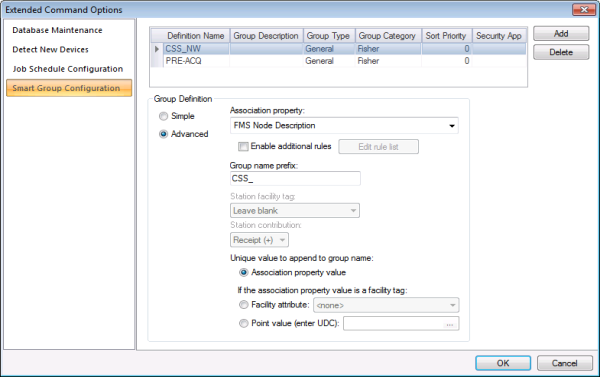
Use the Smart Group Configuration page of the Extended Command Options dialog box to configure details for "smart" group definitions and rules utilized by the Generate Smart Groups command.
Note: The definition of the Generate Smart Groups command resides in FMS, but you can also use CygNet Explorer (MSS service) to schedule the command. Scheduling a Generate Smart Groups command in the MSS will ensure that new Nodes added to the system are included in the appropriate group. See Scheduling FMS Command Tasks in the MSS for more information.
You must have proper security authorization to configure Smart Group definitions. See FMS Security (and CMDSYS security event) for information about configuring security access to extended command options.
See Running Generate Smart Groups Commands for more information about running the configured command via FMS Explorer.
See Generate Smart Groups for more information about additional options for using the command.
Generate Smart Groups commands are set up to auto-generate CygNet Measurement groups (General or Station), utilizing user-defined Smart Group definitions and parameters. Use the Extended Options button on the Commands menu in FMS Explorer to access the Smart Group configuration page. Each smart group definition created is based on a user-defined association property, and/or rules, and specified naming conventions. When Generate Smart Groups commands are run, the smart group definitions are utilized to generate group assignments based on what Nodes meet the defined criteria.
Create Smart Group definitions in the top section of the pane, that contains user-supplied properties (Definition Name, Group Description, Group Type, etc.) defining the group(s) that will result from running a Generate Smart Groups command. For each definition listed, configure its rules and/or additional parameters in the bottom section of the pane (using Simple or Advanced methods), to define what specific rules or data to use when evaluating devices for membership in the selected group.
Note: Because parameters are specific to unique functionality, the set of parameters for each group type (General or Station) varies. Parameters not applicable to the group type selected appear dimmed.
Create groups using either Simple or Advanced group definition methods.
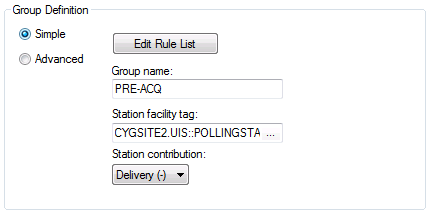
The Simple group definition method creates a single group based on user-defined rules. Configure the rules for group membership, and all devices matching the customized rules will be put into the group when the command runs. If no devices currently match the rules, the group will still be created, but it will not have any members yet.
Rules can include multiple parameters, joined by an And operator to narrow the criteria, or by an Or operator to broaden the criteria. See Configuring Smart Groups Rules for more information.
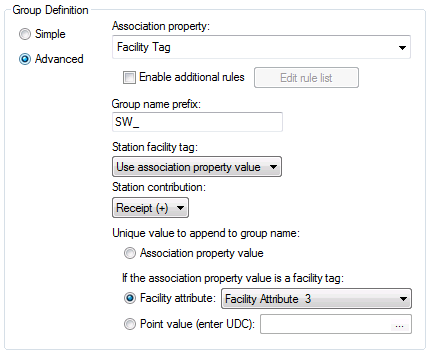
The Advanced group definition method creates a group for each unique value of a user-specified association property, therefore multiple groups can be created. Configure the property fields, and the devices matching the criteria will be sorted into groups according to their values for the specified association property when the command runs. If you later change the association property against which the command is run, Smart Groups (or Smart Group entries) no longer matching the criteria will be removed the next time the command runs.
You can also optionally apply rules to Advanced smart group definitions, as a secondary criteria to additionally refine group membership and narrow the scope of the groups created. The rule creation process is the same as used for the Simple method. See Configuring Smart Groups Rules for more information.
Example
If you supply Facility Type as the primary association property for an advanced group definition, then a unique group will be created for each set of devices with a unique facility type. In a scenario of 6 devices, where 3 have a facility type of METER_IN and 3 have a facility type of METER_OUT, 2 separate groups would be created. If you opt to also enable additional rules for the group definition, then each group can be further refined to include only currently enabled devices or devices of a particular type, or supporting a particular type of history data, etc.

Use the following steps to create and configure Smart Group definitions for FMS Generate Smart Groups commands.
To Configure a Smart Group Definition
| Property | Description |
|---|---|
Definition Name | Type in a Definition Name for each new Smart Group definition. This property is required. |
Group Description | Type in a Group Description for the group(s) created by this definition. This property is optional. |
Group Type | Select the Group Type for the group(s) created by this definition from the drop-down menu. Options are General or Virtual Station. This property is required. |
Group Category | A category can help further categorize groups for sorting and filtering purposes. Select an existing Group Category from the available choices in the drop-down menu. See Manage Group Categories in the Managing Group Nodes topic for more information. This property is optional. |
Sort Priority | Type in the Sort Priority to assign to the group(s) created by this definition. The priority number assigned places it within a manually sortable list. Higher numbers place a Node higher up on a list. Default value is 0. |
Security App | Type in the security application for the group(s) created by this definition. See FMS Security for more information This property is optional. |
Notes:
Use allowable characters. Invalid characters, or spaces, will be replaced with an underscore (_).
Avoid using maximum character counts for group names/prefixes. This applies to all group names, but particularly to group names with prefixes added using the Advanced group definition method. Group names have a total limit of 20 characters, and the Service will truncate group names that exceed this limit. Group names must also be distinct, and the group cannot be created if the group name already exists. If a group name is too long, and the resultant truncated group name is equal to an existing group name, no group can be created and an error will be reported in the command log.
To select a property upon which to base group creation when configuring an Advanced Smart Group definition, click to select a value from the Association property drop-down list. The value(s) of the selected association property will be used to append to the Group name prefix to form the group name(s). Resultant group name appended values are described below.
You can also optionally enable additional rules to refine Advanced definitions, as for Simple definitions.
To enter a comparison item upon which to base a Smart Groups rule definition when configuring a Simple (or optionally for Advanced) Smart Group definition, click to select a value from the Data Item drop-down list and then enter a value for the selected item into the Comparison Item text box. Valid comparison item values are described below.
Possible values for association property (for Advanced definitions) or data item comparison (for Simple, and optionally Advanced, definitions) are as follows.
| Association Property/ Data Item |
Group Name Appended Value/ Comparison Item Value |
|---|---|
| FMS: Configuration Data | Select the appropriate configuration data item to use for group creation.
Note: Configuration record values are based on the last valid configuration data received, which is not necessarily the configuration value as of "now." |
|
Device Type |
Possible values are as follows.
Valid for gas or liquid devices |
|
Primary Calc |
Possible values for gas devices are as follows.
Possible values for liquid devices are as follows.
Valid for gas or liquid devices |
|
FPV Calc |
Possible values are as follows.
Valid for gas devices |
|
Contract Hour |
The contract hour value of the configuration record Valid for gas or liquid devices |
|
Base Pressure |
Base pressure conditions value, in psi Valid for gas devices |
|
Base Temperature |
Base temperature conditions value, in Fahrenheit Valid for gas devices |
| FMS: Node Properties | Select the appropriate Node property to use for group creation. |
|
[Boolean Node properties] |
Possible values for Boolean Node properties are as follows.
|
|
FMS Node Name |
Possible values are partial Node names configured in your FMS system. |
|
FMS Node Description |
Possible values are partial Node descriptions configured in your FMS system. |
|
Node Type |
Possible values are as follows.
|
|
Install Date |
If used as part of an advanced Smart Group name, the Install Date will be appended to the group name in the following format: YYYY/MM/DD If used as a Comparison item when configuring a Smart Groups rule for a simple Smart Group definition, a variety of date formats are acceptable. See Date and Time for more information. |
|
Enabled |
Possible values for the Enabled status of a Node are as follows.
|
|
Use Alt. Gas Quality Source |
Possible values for whether a Node uses an alternate gas quality source, other than the configuration on the corresponding device, are as follows.
|
|
Data Source |
Possible values for the data source of a Node are as follows.
|
|
Data Source Retention |
Possible values are the number of days the flow computer retains source data. |
|
Has Config |
Status of Node support for configuration data. Possible values are as follows.
|
|
Has Events and Alarms |
Status of Node support for events and alarms data. Possible values are as follows.
|
|
Has Live Gas Quality |
Status of Node support for live gas quality data. Possible values are as follows.
|
|
Has PM History |
Status of Node support for periodic metering history data. Possible values are as follows.
|
|
Has PQ History |
Status of Node support for periodic quality history data. Possible values are as follows.
|
|
Has Batch History |
Status of Node support for batch history data. Possible values are as follows.
|
|
Has Ticket History |
Status of Node support for ticket history data. Possible values are as follows.
|
|
Contract Hour |
Possible values for the contract hour configured for a Node, as an offset in hours from the 00:00:00 (midnight) Device time, describing the hour at which the contract day begins. See Using Contract Hour in CygNet Measurement for more information. |
|
Time Zone Key |
Possible numerical values for the CygNet time zone key configured for a Node, as defined in the CygNetTimeZones.xml file located in the CygNet\Services\ARS folder on your host server. See CygNetTimeZones.xml File for more information. |
| DDS: Device Attributes | Select the appropriate device attribute to use for group creation. |
|
Comm Line |
Possible values are the active communication lines entered in your system for communication by a remote device. Communication line types are stored in the Device Definition Service (DDS). |
|
Device Type |
Possible values are the device types entered in your system. Device types are stored in the Device Definition Service (DDS). |
|
Enabled |
Possible values for the Enabled status of a device are as follows.
Enabled status for a device is stored in the Device Definition Service (DDS). |
| Reporting Facility: General Attributes | Select the appropriate reporting facility General attribute to use for group creation. |
|
Facility Site |
Possible values are the reporting facility sites stored in your system. |
|
Facility Service |
Possible values are the reporting facility services stored in your system. |
|
Facility Site.Service |
Possible values are the reporting facility Site.Service values stored in your system. |
|
Facility ID (FAC) |
Possible values are the reporting facility IDs stored in your system. |
|
Facility Tag |
Possible values are the reporting facility tags stored in your system. |
|
Facility Type |
Possible values are the reporting facility types stored in your system. Facility types are stored in the SYSFCTYP table in the Table Reference Service (TRS). |
|
Facility Description |
Possible values are the reporting facility descriptions stored in your system. |
|
Facility Category |
Possible values are as follows.
See Facility Category for more information. |
|
Facility Security App |
Possible values are the reporting facility Security Applications stored in your system. |
|
Facility Is Active |
Possible values for "Facility Is..." attributes are as follows.
|
|
Facility Is Referenced by DDS or PCS/PNT |
|
|
Facility Is Referenced by DDS |
|
|
Facility Is Referenced by PCS/PNT |
|
| Reporting Facility: Text Attributes | Select the appropriate reporting facility text attribute (Facility Info 0 - 1 or Facility Attribute 0 - 29) to use for group creation. |
| Reporting Facility: Table-driven Attributes | Select the appropriate reporting facility table or table description (Facility Table 0 - 29 or Facility Table 0 - 29 Desc) attribute to use for group creation. |
| Reporting Facility: Yes/No Attributes | Select the appropriate reporting facility Yes/No attribute (Facility Yes/No 0 - 19) to use for group creation. Possible values are as follows.
|
| Polling Facility: General Attributes | Select the appropriate polling facility General attribute to use for group creation. |
|
Facility Site |
Possible values are the polling facility sites stored in your system. |
|
Facility Service |
Possible values are the polling facility services stored in your system. |
|
Facility Site.Service |
Possible values are the polling facility Site.Service values stored in your system. |
|
Facility ID (FAC) |
Possible values are the polling facility IDs stored in your system. |
|
Facility Tag |
Possible values are the polling facility tags stored in your system. |
|
Facility Type |
Possible values are the polling facility types stored in your system. Facility types are stored in the SYSFCTYP table in the Table Reference Service (TRS). |
|
Facility Description |
Possible values are the polling facility descriptions stored in your system. |
|
Facility Category |
Possible values are as follows.
See Facility Category for more information. |
|
Facility Security App |
Possible values are the polling facility Security Applications stored in your system. |
|
Facility Is Active |
Possible values for "Facility Is..." attributes are as follows.
|
|
Facility Is Referenced by DDS or PCS/ PNT |
|
|
Facility Is Referenced by DDS |
|
|
Facility Is Referenced by PCS/PNT |
|
| Polling Facility: Text Attributes | Select the appropriate polling facility text attribute (Facility Info 0 - 1 or Facility Attribute 0 - 29) to use for group creation. |
| Polling Facility: Table-driven Attributes | Select the appropriate polling facility table or table description attribute (Facility Table 0 - 29 or Facility Table 0 - 29 Desc) to use for group creation. |
| Polling Facility: Yes/No Attributes | Select the appropriate polling facility Yes/No attribute (Facility Yes/No 0 - 19) to use for group creation. Possible values are as follows.
|
| Remote Device Facility: General Attributes | Select the appropriate device facility General attribute to use for group creation. |
|
Facility Site |
Possible values are the device facility sites stored in your system. |
|
Facility Service |
Possible values are the device facility services stored in your system. |
|
Facility Site.Service |
Possible values are the device facility Site.Service values stored in your system. |
|
Facility ID (FAC) |
Possible values are the device facility IDs stored in your system. |
|
Facility Tag |
Possible values are the device facility tags stored in your system. |
|
Facility Type |
Possible values are the device facility types stored in your system. Facility types are stored in the SYSFCTYP table in the Table Reference Service (TRS). |
|
Facility Description |
Possible values are the device facility descriptions stored in your system. |
|
Facility Category |
Possible values are as follows.
See Facility Category for more information. |
|
Facility Security App |
Possible values are the device facility Security Applications stored in your system. |
|
Facility Is Active |
Possible values for "Facility Is..." attributes are as follows.
|
|
Facility Is Referenced by DDS or PCS/PNT |
|
|
Facility Is Referenced by DDS |
|
|
Facility Is Referenced by PCS/PNT |
|
| Remote Device Facility: Text Attributes | Select the appropriate device facility text attribute (Facility Info 0 - 1 or Facility Attribute 0 - 29) to use for group creation. |
| Remote Device Facility: Table-driven Attributes | Select the appropriate device facility table or table description attribute (Facility Table 0 - 29 or Facility Table 0 - 29 Desc) to use for group creation. |
| Remote Device Facility: Yes/No Attributes | Select the appropriate device facility Yes/No attribute (Facility Yes/No 0 - 19) to use for group creation. Possible values are as follows.
|
Select a UDC to associate with each custom column you will be using. Click to select a custom column, click in the UDC column, and then click ... or press F4 to access the Select a Uniform Data Code dialog box.
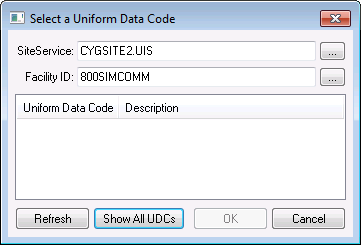
The properties for the Select a Uniform Data Code dialog box are described below.
|
Parameter |
Description |
|---|---|
|
SiteService |
Select the current value service (CVS) from which to retrieve data. Type the Site.Service name into the text box, or click ... to access the Select Service dialog box. |
|
Facility ID |
Select the Facility ID. Type the name into the text box, or click ... to access the Select a Facility ID dialog box. Note: You can also add or edit a facility from this dialog box. |
|
Uniform Data Code |
Lists the UDCs associated with the selected facility. |
|
Description |
Lists the descriptions of the corresponding UDCs. |
|
Refresh |
Click to refresh the Uniform Data Code list. |
|
Show All UDCs |
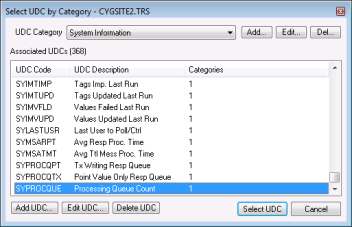
This button is enabled when a Site.Service is selected. Click Show All UDCs to access the Select UDC by Category dialog box.
Select a UDC Category from the drop-down menu. All associated UDCs will be displayed in the list. Select the specific UDC desired, and then click Select UDC. Note: If needed, UDC categories or UDCs can be added, edited, or deleted, using the corresponding buttons on the dialog box. |
|
OK |
Click OK when done. |
More:
 Configuring Smart Groups Rules
|
|
|